
When using a sit-stand converter, paying close attention to your keyboard position is crucial for comfort and long-term health. Make sure your keyboard is at a height where your wrists stay straight and relaxed, with a slight tilt that keeps your forearms parallel to the ground. Avoid excessive tilt or wrist bending, as these can cause strain over time. Keeping this small detail in check can make a big difference in preventing discomfort—stay tuned to uncover more essential adjustments.

Get business pricing on your home office setup
- Business-only prices and quantity discounts
- Tax-exempt purchasing
- Multiple users, one account, clear invoices
Key Takeaways
- Proper keyboard placement and tilt prevent strain, ensuring wrists stay straight and relaxed during sit-stand conversions.
- Small tilt adjustments can significantly improve wrist support and reduce fatigue when switching between sitting and standing.
- Maintain forearm and wrist alignment with the keyboard to promote ergonomic posture and minimize joint stress.
- Consistently re-evaluate and fine-tune keyboard position for sustained comfort and long-term musculoskeletal health.
- Avoid overlooking subtle setup details, as they greatly impact comfort and prevent discomfort during extended use.
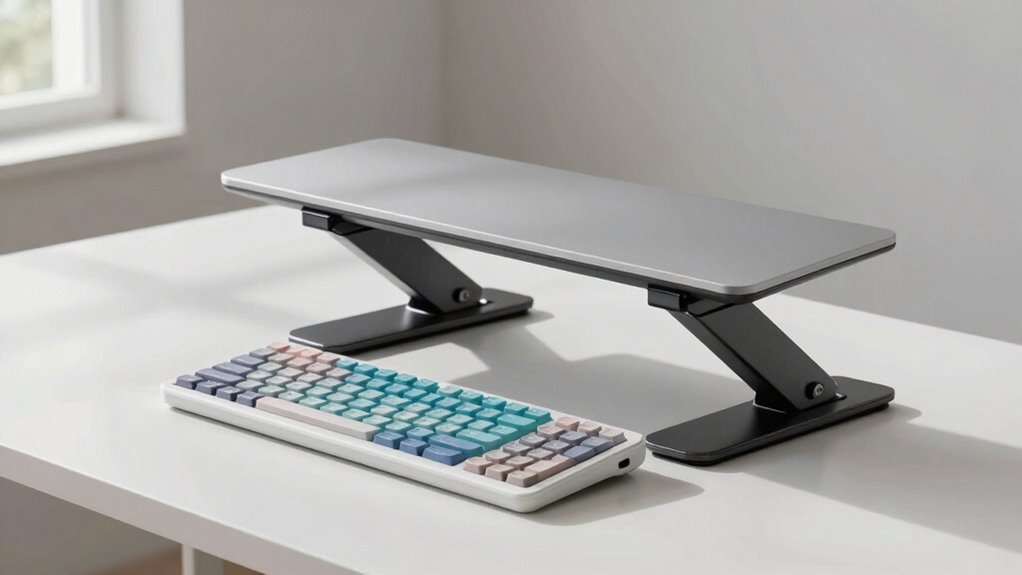
When using a sit-stand converter, positioning your keyboard correctly is essential to avoid strain and maximize comfort. Many people focus on the height of the converter or the desk setup but overlook how critical proper keyboard placement is for overall ergonomics. One key aspect often neglected is ergonomic wrist positioning. Ensuring your wrists stay straight and relaxed while typing helps prevent discomfort and repetitive strain injuries. To achieve this, you need to pay attention to how your keyboard is aligned relative to your body and your hands. It’s tempting to just set the keyboard at a comfortable height, but without considering wrist alignment, you might unknowingly create tension or awkward angles that lead to long-term issues.
Proper keyboard placement and wrist alignment are vital for ergonomic comfort and long-term health.
Another often-overlooked detail is keyboard tilt adjustment. Adjusting the tilt can seem minor but makes a big difference in maintaining ergonomic wrist positioning. If your keyboard’s tilt is too steep or too flat, your wrists might bend unnaturally, increasing strain. Ideally, the keyboard should be positioned so that your wrists stay in a neutral, straight position when you’re typing. Many sit-stand converters come with adjustable tilt features, but you might not realize how subtle changes can impact comfort. Experiment with small tilt adjustments until your wrists feel supported and relaxed. This fine-tuning helps reduce fatigue and makes standing or sitting for extended periods more comfortable.
You should also consider the angle of your keyboard relative to your elbows and shoulders. When your keyboard is properly tilted, it allows your forearms to remain parallel to the ground, which is a more natural and less stressful position for your joints. This means you need to adjust the tilt so that your wrists aren’t forced into a bend, especially during prolonged typing sessions. Remember, your goal is to keep your wrists in line with your forearms, avoiding any upward or downward bending that can cause discomfort over time. Recognizing the importance of ergonomic principles can help you create a more comfortable and health-conscious workspace. Additionally, maintaining proper keyboard positioning can prevent long-term musculoskeletal problems and improve overall productivity. Paying attention to posture alignment can also enhance your comfort and reduce strain during extended work sessions. Ensuring your workspace setup adheres to these ergonomic standards can also promote long-term health benefits, reducing the risk of chronic issues.
Finally, don’t overlook the importance of consistency. Once you’ve adjusted your keyboard tilt and achieved ergonomic wrist positioning, stick with those settings. It might take a few days to get used to the new setup, but maintaining proper positioning is crucial for long-term comfort and health. Small, ongoing adjustments can make a significant difference. Being mindful of these ergonomic adjustments can help you develop better habits and avoid future discomfort. This quiet detail—the correct keyboard tilt and wrist alignment—is often overlooked by buyers but can greatly enhance your ergonomic setup, reducing strain and making your workday more comfortable.
ergonomic keyboard tilt adjustment
As an affiliate, we earn on qualifying purchases.
As an affiliate, we earn on qualifying purchases.
Frequently Asked Questions
How Do I Adjust My Sit-Stand Converter for Optimal Comfort?
To adjust your sit-stand converter for ideal comfort, start by ensuring your keyboard height promotes proper posture alignment—your elbows should be at a 90-degree angle. Check that the desk feels stable so it doesn’t wobble during use. Make small adjustments, then sit or stand to test your comfort. Keep your wrists straight, shoulders relaxed, and feet flat on the ground for the best ergonomic setup.
What Is the Ideal Keyboard Height for Sit-Stand Desks?
Your keyboard height should be perfectly aligned with your elbows, forming about a 90-degree angle—anything less is a catastrophe for your ergonomics. Focus on keyboard ergonomics by adjusting your desk height so your wrists stay straight and your shoulders relaxed. When you lower or raise your sit-stand converter, make certain the keyboard remains at this ideal level, promoting comfort and preventing strain during long work hours.
Can I Use Ergonomic Accessories With a Sit-Stand Converter?
Yes, you can definitely use ergonomic accessories with a sit-stand converter. Many accessories, like wrist rests, monitor arms, and footrests, are designed for sit-stand compatibility, enhancing your comfort and posture. Just make certain they’re adjustable and compatible with your setup to prevent strain and promote proper ergonomics. Using these accessories helps you maintain a healthy workspace, making your sit-stand desk more effective and comfortable throughout the day.
How Often Should I Change Positions During Work?
You should change positions every 30 to 60 minutes to reduce muscle tension and promote good posture alignment. Moving regularly helps prevent stiffness and discomfort, especially if you’re using a sit-stand converter. Stand for a few minutes, then sit down, and stretch when needed. This habit keeps your muscles relaxed, improves circulation, and maintains ergonomic balance throughout your workday.
Are There Safety Concerns When Using a Sit-Stand Converter?
Yes, there are safety concerns when using a sit-stand converter. To prevent ergonomic injuries, make sure you use the converter within its weight capacity and adjust it properly to avoid strain. Overloading the converter can cause instability or damage. Always follow the manufacturer’s guidelines, verify it’s stable before use, and avoid sudden movements. Regularly check for signs of wear to keep your workspace safe and ergonomic.
adjustable sit-stand desk keyboard tray
As an affiliate, we earn on qualifying purchases.
As an affiliate, we earn on qualifying purchases.
Conclusion
Remember, mastering your sit-stand setup is like tuning a finely crafted instrument—you’ll find harmony and comfort when every piece is in its perfect place. Don’t let overlooked details, like keyboard position, be the silent dissonance disrupting your rhythm. Adjust with intention, and let your workspace become a symphony of ease and efficiency. When you fine-tune these quiet elements, you’ll discover a new level of comfort—making each workday feel less like a chore and more like a smooth, flowing melody.
wrist support ergonomic keyboard
As an affiliate, we earn on qualifying purchases.
As an affiliate, we earn on qualifying purchases.
As an affiliate, we earn on qualifying purchases.
Halloween Picks
halloween
As an affiliate, we earn on qualifying purchases.