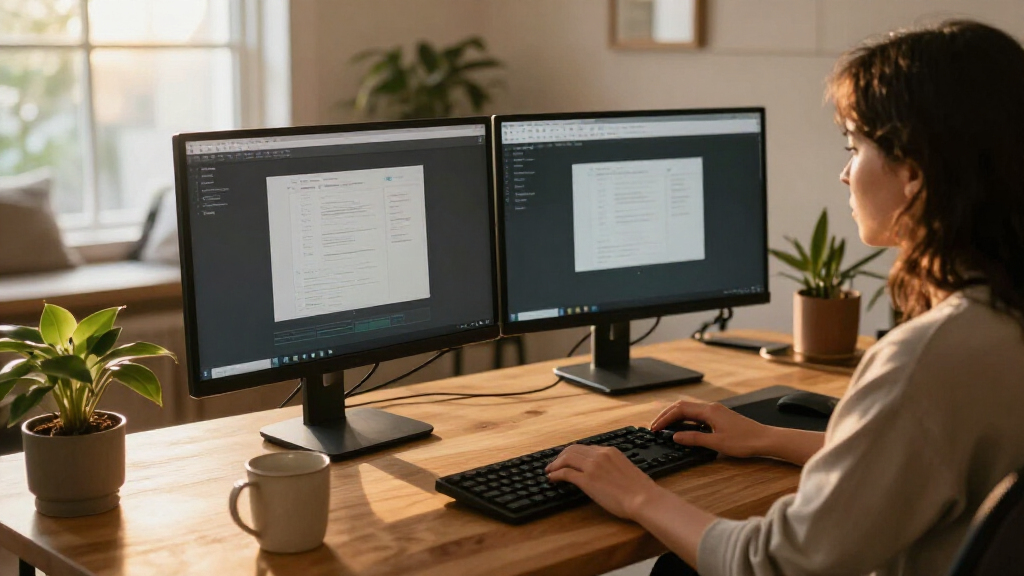

The Dell 24 Plus Monitor S2425HSM is my best overall pick for remote work, pairing a compact Full HD screen with 144Hz refresh and flexible positioning. For a larger workspace, the Dell 34-Inch S3425DW adds an ultrawide WQHD canvas and USB-C, while the BenQ GW2791P is a sensible 27-inch choice for everyday office tasks. Choosing among these home office monitors for remote work means balancing desk space, text clarity, ergonomics, and extras such as USB-C or built-in speakers. Larger screens can make multitasking easier, but resolution and viewing distance matter as much as diagonal size. Read on for the full breakdown and a guide to matching a monitor to your setup.

Get business pricing on your home office setup
- Business-only prices and quantity discounts
- Tax-exempt purchasing
- Multiple users, one account, clear invoices
Complete the kit


Key Takeaways
The Dell S2425HSM earns the overall lead by combining a compact 23.8-inch footprint with 144Hz refresh and height, tilt, pivot, and swivel adjustments—useful strengths for a desk used throughout the workday.
For side-by-side documents, the Dell S3425DW and Samsung ViewFinity S50GC offer ultrawide WQHD workspaces; the Dell adds USB-C, while the Samsung is a more straightforward productivity-focused option.
The roundup reveals a resolution tradeoff on larger screens: the 32-inch Full HD LG and ViewSonic provide generous physical space, but their pixel density is lower than that of the 34-inch WQHD options.
Several 23.8- and 27-inch models offer 100Hz to 144Hz refresh rates, but for spreadsheet work and video calls, ergonomic positioning and legible text may matter more than extra smoothness.
Specialized picks fill distinct gaps: the MNN portable monitor suits mobile setups, the Packard Bell two-pack supplies two small displays, and the LG 34SR60QC-W adds smart-monitor features for mixed work and entertainment.
| Dell SE2426H 23.8-Inch FHD IPS Monitor, 144Hz, AMD FreeSync, 2× HDMI |  | Best for Smooth Motion in a Compact Workspace | Screen size: 23.8 inches | Resolution: 1920 × 1080 (FHD) | Panel: IPS LCD | VIEW LATEST PRICE | See Our Full Breakdown |
| Dell P2725H 27-Inch Full HD Monitor |  | Best for Everyday Office Productivity | Screen size: 27 inches | Resolution: 1920 × 1080 (Full HD) | Panel: IPS | VIEW LATEST PRICE | See Our Full Breakdown |
| Samsung Essential S3 27-Inch Curved FHD Monitor |  | Best Curved Option for Mixed Work and Leisure | Screen size: 27 inches | Resolution: 1920 × 1080 (FHD) | Curvature: 1800R | VIEW LATEST PRICE | See Our Full Breakdown |
| MNN 15.6-Inch FHD Portable Monitor |  | Best Portable Second Screen | Screen size: 15.6 inches | Resolution: 1920 × 1080 (FHD) | Panel: IPS LCD | VIEW LATEST PRICE | See Our Full Breakdown |
| LG 32MR50C-B 32-Inch Curved FHD Monitor, 100Hz, AMD FreeSync |  | Best Large-Screen Pick for Casual Use | Screen size: 32 inches | Resolution: 1920 × 1080 (FHD) | Panel: VA | VIEW LATEST PRICE | See Our Full Breakdown |
| LG 34SR60QC-W 34-inch QHD Curved Smart Monitor |  | Best Smart Ultrawide for Work and Streaming | Screen size: 34 inches | Resolution: 3440 × 1440 | Aspect ratio: 21:9 | VIEW LATEST PRICE | See Our Full Breakdown |
| LG 24U411A-B 24-Inch Full HD IPS Monitor, 120Hz, HDR10, Black |  | Best Compact Pick for Mixed Work and Casual Gaming | Screen size: 23.8 inches | Resolution: 1920 × 1080 | Panel type: IPS LED | VIEW LATEST PRICE | See Our Full Breakdown |
| BenQ GW2791P 27-Inch 1080p 120Hz IPS Eye-Care Monitor |  | Best for Eye-Care Features on a 27-Inch Screen | Screen size: 27 inches | Resolution: 1920 × 1080 | Panel type: IPS | VIEW LATEST PRICE | See Our Full Breakdown |
| ViewSonic VA3209M 32-Inch Full HD IPS Monitor |  | Best Large Screen for Legacy Connections | Screen size: 32 inches (31.5-inch viewable) | Resolution: 1920 × 1080 | Panel type: IPS LCD | VIEW LATEST PRICE | See Our Full Breakdown |
| Samsung 34-Inch ViewFinity S50GC Ultra-WQHD Monitor |  | Best Ultrawide for Multi-Source Work | Screen size: 34 inches | Resolution: 3440 × 1440 | Aspect ratio: 21:9 | VIEW LATEST PRICE | See Our Full Breakdown |
| Packard Bell airFrame 21 21.5-Inch FHD Monitor, 2-Pack |  | Best Dual-Monitor Starter Set | Quantity: 2 monitors | Screen size: 21.5 inches each | Resolution: 1920 × 1080 (FHD) | VIEW LATEST PRICE | See Our Full Breakdown |
| Dell 24 Plus Monitor S2425HSM – 23.8″ FHD (1920×1080) 144Hz 1ms, 2 x 3W Speakers, HDMI, Height/Tilt/Pivot/Swivel Adjustability, AMD FreeSync – Ash White |  | Best Ergonomic All-Rounder | Screen size: 23.8 inches | Resolution: 1920 × 1080 (FHD) | Refresh rate: 144 Hz | VIEW LATEST PRICE | See Our Full Breakdown |
| Philips 241V8LB 23.8-Inch Full HD 100Hz VA Monitor |  | Best Contrast for Everyday Work | Screen size: 23.8 inches | Resolution: 1920 × 1080 (Full HD) | Panel type: VA LCD | VIEW LATEST PRICE | See Our Full Breakdown |
| Dell 34-Inch S3425DW Curved WQHD USB-C Monitor |  | Best Premium Ultrawide Workspace | Screen size: 34 inches | Resolution: 3440 × 1440 | Aspect ratio: 21:9 | VIEW LATEST PRICE | See Our Full Breakdown |
| Acer EZ321Q wi 31.5-inch Full HD IPS Monitor |  | Best Large-Screen Budget Workspace | Screen size: 31.5 inches | Resolution: 1920 × 1080 (Full HD) | Panel type: IPS | VIEW LATEST PRICE | See Our Full Breakdown |
| home office monitors for remote work | Screen size | Resolution | Refresh rate | Brightness |
|---|---|---|---|---|
| Dell SE2426H 23.8-Inch FHD IPS | 23.8 inches | 1920 × 1080 (FHD) | 144Hz | — |
| Dell P2725H 27-Inch Full HD Mo | 27 inches | 1920 × 1080 (Full HD) | 100Hz | 300 cd/m² |
| Samsung Essential S3 27-Inch C | 27 inches | 1920 × 1080 (FHD) | 100Hz | 250 cd/m² |
| MNN 15.6-Inch FHD Portable Mon | 15.6 inches | 1920 × 1080 (FHD) | 60Hz | 300 nits |
| LG 32MR50C-B 32-Inch Curved FH | 32 inches | 1920 × 1080 (FHD) | 100Hz | 250 cd/m² |
| LG 34SR60QC-W 34-inch QHD Curv | 34 inches | 3440 × 1440 | 100Hz | — |
| LG 24U411A-B 24-Inch Full HD I | 23.8 inches | 1920 × 1080 | 120Hz | 250 cd/m² |
| BenQ GW2791P 27-Inch 1080p 120 | 27 inches | 1920 × 1080 | 120Hz | — |
| ViewSonic VA3209M 32-Inch Full | 32 inches (31.5-inch viewable) | 1920 × 1080 | 75Hz | 250 nits |
| Samsung 34-Inch ViewFinity S50 | 34 inches | 3440 × 1440 | 100Hz | 300 cd/m² |
| Packard Bell airFrame 21 21.5- | 21.5 inches each | 1920 × 1080 (FHD) | 75 Hz | — |
| Dell 24 Plus Monitor S2425HSM | 23.8 inches | 1920 × 1080 (FHD) | 144 Hz | 300 cd/m² |
| Philips 241V8LB 23.8-Inch Full | 23.8 inches | 1920 × 1080 (Full HD) | 100 Hz | — |
| Dell 34-Inch S3425DW Curved WQ | 34 inches | 3440 × 1440 | 120 Hz | — |
| Acer EZ321Q wi 31.5-inch Full | 31.5 inches | 1920 × 1080 (Full HD) | 60 Hz | 300 nits |
More Details on Our Top Picks
Dell SE2426H 23.8-Inch FHD IPS Monitor, 144Hz, AMD FreeSync, 2× HDMI
The Dell SE2426H suits a remote worker who wants a compact screen for office tasks but also values fluid scrolling, video, or casual gaming. Its 144Hz refresh rate is higher than the Dell P2725H’s 100Hz, while the 23.8-inch Full HD IPS panel keeps the footprint manageable. The matte finish, wide viewing angles, and TÜV Rheinland 3-star eye comfort certification add practical support for long desk sessions. However, the extra refresh rate does not add workspace detail: text and documents still display at 1920 × 1080. Unlike the P2725H’s adjustable stand and USB ports, this model lists tilt adjustment only and has two HDMI ports. Choose it for smooth motion and a smaller desk setup; skip it if ergonomic positioning or extra connectivity matters more.
Pros:- 144Hz refresh rate and AMD FreeSync support smoother motion than the Dell P2725H’s 100Hz panel.
- 23.8-inch IPS display with 178-degree viewing angles fits smaller workspaces.
- Matte anti-glare finish and TÜV Rheinland 3-star eye comfort certification support extended desk use.
- Includes a stand and 1.8-meter HDMI cable.
Cons:- Full HD resolution provides less workspace detail than higher-resolution monitors.
- Stand adjustment is limited to tilt, with no listed height or swivel adjustment.
- Connectivity is limited to two HDMI ports.
Best for: Remote workers with compact desks who want a small Full HD screen for documents, calls, and smoother motion during breaks.
Not ideal for: People who need height-adjustable positioning, USB connections, or more desktop detail for dense spreadsheets and side-by-side windows.
- Screen size:23.8 inches
- Resolution:1920 × 1080 (FHD)
- Panel:IPS LCD
- Refresh rate:144Hz
- Sync technology:AMD FreeSync
- Ports:2 HDMI
- Stand adjustment:Tilt
- Weight:7.4 pounds
Our verdict“Choose the Dell SE2426H for a compact remote-work setup that benefits from 144Hz motion, but not if you need ergonomic stand adjustments or a sharper workspace.”
Dell P2725H 27-Inch Full HD Monitor
The Dell P2725H puts desk ergonomics and useful connections ahead of headline resolution. Its adjustable stand, four USB ports, HDMI, and DisplayPort make it easier to position the screen and connect common work accessories than the more basic Dell SE2426H. The 27-inch IPS panel gives documents and video calls a larger viewing area, while its 100Hz refresh rate makes scrolling feel smoother than a standard 60Hz display. The tradeoff is that Full HD is spread across a larger screen, so fine text and detailed layouts can look less crisp than on a higher-resolution monitor. It is the more work-focused Dell in this group, but the smaller SE2426H offers a higher refresh rate and takes up less desk space.
Pros:- Adjustable stand allows more flexible positioning than the tilt-only Dell SE2426H.
- Four USB ports plus HDMI and DisplayPort support a more connected desk setup.
- 27-inch IPS screen offers a broad viewing area with 178-degree viewing angles.
- 100Hz refresh rate and low-blue-light, flicker-free features support everyday office use.
Cons:- Full HD resolution on a 27-inch screen offers less fine detail than higher-resolution alternatives.
- The larger panel needs more desk space than 23.8-inch options.
- Its 100Hz refresh rate is below the Dell SE2426H’s 144Hz.
Best for: Remote employees who want a larger screen, flexible stand positioning, and USB ports for a keyboard, mouse, or other desk accessories.
Not ideal for: Buyers who prioritize sharp text, dense multitasking layouts, or a compact monitor footprint over stand flexibility and connectivity.
- Screen size:27 inches
- Resolution:1920 × 1080 (Full HD)
- Panel:IPS
- Refresh rate:100Hz
- Brightness:300 cd/m²
- Connectivity:HDMI, DisplayPort, 4 USB ports
- Stand:Adjustable
- Warranty:3-year limited hardware warranty
Our verdict“Pick the Dell P2725H if stand flexibility and USB connectivity matter more to your workday than higher resolution or a compact footprint.”
Samsung Essential S3 27-Inch Curved FHD Monitor
The Samsung Essential S3 brings a curved 27-inch screen to a remote-work desk without adding a high-resolution premium to the setup. Its 1800R curve and 3,000:1 contrast ratio give video and other leisure viewing more visual depth than the IPS Dell P2725H, whose flatter presentation is better suited to a conventional office layout. The 100Hz refresh rate is a useful step up for smoother scrolling, and the TÜV-certified eye comfort features address long screen sessions. For work, though, the curve is a matter of preference rather than a productivity upgrade, and Full HD on 27 inches leaves less text detail than higher-resolution choices. The listed ports are also limited to HDMI and D-sub, so it is less adaptable than Dell’s HDMI, DisplayPort, and USB combination.
Pros:- 1800R curve creates a more enveloping viewing experience than the flat Dell P2725H.
- 3,000:1 contrast ratio supports stronger dark-to-light separation.
- 100Hz refresh rate and eye comfort features suit everyday work and entertainment.
- 178-degree viewing angle supports viewing from off-center positions.
Cons:- Full HD resolution on a 27-inch display offers less fine detail than higher-resolution screens.
- Connectivity is limited to one HDMI port and D-sub rather than the Dell P2725H’s USB and DisplayPort options.
- The refresh rate defaults to 60Hz and must be adjusted to reach 100Hz.
Best for: Remote workers who split time between everyday office tasks and video or casual gaming, and prefer a curved screen for leisure viewing.
Not ideal for: People who need USB or DisplayPort connections, sharper text on a 27-inch screen, or a flat panel for precision-focused office layouts.
- Screen size:27 inches
- Resolution:1920 × 1080 (FHD)
- Curvature:1800R
- Refresh rate:100Hz
- Contrast ratio:3,000:1
- Brightness:250 cd/m²
- Ports:1 HDMI, 2 component outputs
- Weight:8.4 pounds
Our verdict“Choose the Samsung Essential S3 if you want a curved screen for work and entertainment, but favor the Dell P2725H for office connectivity and stand flexibility.”
MNN 15.6-Inch FHD Portable Monitor
The MNN 15.6-inch portable monitor fills a different role from the desk-sized Dell P2725H: it is a lightweight second screen for remote workers who move between rooms or need extra display space while traveling. At 1.5 pounds, it is easier to pack than any of the fixed monitors here, and the included smart cover doubles as a stand. USB-C can simplify connections to compatible devices, while HDMI offers another route for laptops and other sources. The compromise is scale: a 15.6-inch display is far less comfortable as a permanent primary screen than the Dell’s 27-inch panel. USB-C video also requires Thunderbolt 3 or USB-C DP Alt Mode support, so buyers should check their device before relying on a one-cable setup.
Pros:- Light 1.5-pound design is far easier to carry than the fixed Dell P2725H.
- USB-C and HDMI provide connection options for compatible devices.
- Landscape and portrait viewing modes add flexibility for documents and reference material.
- Included smart cover doubles as a stand.
Cons:- The 15.6-inch screen is small for a primary home-office display.
- USB-C video requires Thunderbolt 3 or USB-C DP Alt Mode support.
- The 60Hz refresh rate is lower than the 100Hz and 144Hz desktop options.
Best for: Remote workers who travel, hot-desk, or want a lightweight second screen for a compatible laptop.
Not ideal for: People seeking a large, height-adjustable primary monitor or anyone whose device lacks USB-C video support and does not suit the HDMI connection.
- Screen size:15.6 inches
- Resolution:1920 × 1080 (FHD)
- Panel:IPS LCD
- Refresh rate:60Hz
- Brightness:300 nits
- Ports:2 USB-C, 1 HDMI
- Weight:1.5 pounds
- Included accessories:Smart cover, Mini HDMI cable, full-function Type-C cable
Our verdict“Choose the MNN as a portable second screen for compatible devices, not as a replacement for a full-size home-office monitor.”
LG 32MR50C-B 32-Inch Curved FHD Monitor, 100Hz, AMD FreeSync
The LG 32MR50C-B is the largest screen in this group, giving remote workers a broad curved display for video calls, streaming, and casual multitasking. Its 32-inch VA panel and 3,000:1 contrast ratio favor deeper-looking dark scenes compared with the IPS Dell P2725H, while 100Hz and AMD FreeSync support smoother motion during everyday use and gaming. That size comes with a clear work tradeoff: Full HD across 32 inches is less sharp than the 27-inch Samsung Essential S3’s already limited Full HD presentation, particularly for small text and detailed spreadsheets. The stand adjusts for tilt but has no listed height adjustment, so screen placement may take more desk or riser planning. Choose it for a large, immersive viewing area, not for crisp text or ergonomic range.
Pros:- 32-inch curved screen provides more viewing area than the 27-inch Dell P2725H.
- VA panel and 3,000:1 contrast ratio support stronger contrast than the IPS Dell.
- 100Hz refresh rate and AMD FreeSync support smoother motion.
- Reader Mode and OnScreen Control add software and viewing conveniences.
Cons:- Full HD resolution across 32 inches can make text and fine details look less sharp than on smaller Full HD displays.
- Stand adjustment is tilt-only, with no listed height adjustment.
- The larger curved display requires more desk space than 23.8-inch and 27-inch options.
Best for: Remote workers with ample desk space who want a large curved screen for calls, streaming, and casual gaming alongside routine tasks.
Not ideal for: People who work with small text, dense spreadsheets, or precision layouts, or who need height adjustment and sharper detail.
- Screen size:32 inches
- Resolution:1920 × 1080 (FHD)
- Panel:VA
- Refresh rate:100Hz
- Contrast ratio:3,000:1
- Brightness:250 cd/m²
- Connectivity:D-Sub, HDMI, headphone
- Stand adjustment:Tilt
Our verdict“Choose the LG 32MR50C-B for a spacious curved screen used for mixed work and entertainment, but skip it if text clarity and ergonomic adjustment take priority.”
LG 34SR60QC-W 34-inch QHD Curved Smart Monitor
The LG 34SR60QC-W combines an expansive 3440 × 1440 ultrawide workspace with webOS 23, making it a strong fit for remote workers who want one display for documents, side-by-side windows, and streaming after hours. Its 1800R curve helps keep the broad screen within view, while 100Hz refresh supports smoother scrolling than the ViewSonic VA3209M’s 75Hz panel. Unlike the Samsung ViewFinity S50GC, this LG adds built-in streaming apps and AirPlay 2/HomeKit support, but the Samsung offers picture-in-picture and picture-by-picture modes for more explicit source juggling. The tradeoff is that some services need an internet connection or subscription, and the optional Magic Remote is sold separately. Choose this for a flexible work-and-entertainment setup; skip it if you want a straightforward monitor without smart-TV features.
Pros:- 3440 × 1440 resolution and a 21:9 layout give side-by-side work windows more room
- 1800R curvature and 100Hz refresh rate support comfortable viewing and smoother scrolling
- webOS 23 adds streaming apps and LG Channels without requiring a separate streaming device
- AirPlay 2 and HomeKit support make wireless sharing and smart-home integration easier
Cons:- Some streaming services require internet access or separate subscriptions
- LG Magic Remote is sold separately
- Smart features may be unnecessary overhead for buyers who only need a work display
Best for: Remote workers who want a wide, high-resolution workspace plus built-in streaming and Apple device sharing
Not ideal for: Buyers who need a simple, low-complexity display or rely on a bundled remote for couch-based control
- Screen size:34 inches
- Resolution:3440 × 1440
- Aspect ratio:21:9
- Curvature:1800R
- Refresh rate:100Hz
- Color gamut:Up to 99% sRGB
- Operating system:webOS 23
- Ports:2 HDMI, 3 USB
- Wireless compatibility:Apple AirPlay 2 and HomeKit
Our verdict“Choose the LG if you want an ultrawide work surface that also serves as a connected entertainment screen.”
LG 24U411A-B 24-Inch Full HD IPS Monitor, 120Hz, HDR10, Black
The LG 24U411A-B is the compact choice for a desk where a larger display would crowd the workspace. Its 23.8-inch IPS screen keeps viewing angles broad, while the 120Hz refresh rate makes scrolling and casual gaming feel smoother than on the ViewSonic VA3209M. Reader Mode and a matte finish are useful for text-heavy days, though they do not make up for the stand’s limited tilt-only adjustment. Compared with the BenQ GW2791P, this LG takes up less desk space but gives you less screen area for keeping multiple work windows open. Its Full HD resolution is sensible at this size, yet it offers less detail and workspace than either 34-inch ultrawide option here. I’d pick it for a focused, space-conscious setup, not for intensive multitasking.
Pros:- Compact 23.8-inch size fits smaller desks and shared work areas
- 120Hz refresh rate provides smoother motion than standard 60Hz displays
- IPS panel offers 178-degree viewing angles for flexible seating positions
- Reader Mode, matte finish, and tilt adjustment support text-focused use
Cons:- Full HD resolution provides less workspace and detail than the 34-inch ultrawide models
- Stand adjustment is limited to tilt
- 250 cd/m² brightness may be limiting in very bright rooms
Best for: Remote workers with a small desk who want an IPS screen for documents, video calls, and occasional gaming
Not ideal for: People who regularly keep several large work windows visible or need height, swivel, or pivot adjustment
- Screen size:23.8 inches
- Resolution:1920 × 1080
- Panel type:IPS LED
- Refresh rate:120Hz
- Aspect ratio:16:9
- Brightness:250 cd/m²
- Color gamut:Up to 99% sRGB
- Tilt adjustment:-5° to 20°
Our verdict“Choose this LG for a compact remote-work station where smooth motion matters more than extra screen area or stand flexibility.”
BenQ GW2791P 27-Inch 1080p 120Hz IPS Eye-Care Monitor
The BenQ GW2791P is aimed at desk workers who spend long stretches reading and writing, rather than those chasing the sharpest image. Its Low Blue Light, Flicker-Free, and ePaper modes give it a more workday-focused feature set than the LG 24U411A-B, while its 27-inch IPS panel offers more room for spreadsheets and browser windows. Both deliver 120Hz motion, but the BenQ’s larger panel makes full-screen documents easier to read from a typical desk distance. The compromise is 1080p resolution: text and fine interface details won’t look as crisp as on the 3440 × 1440 LG 34SR60QC-W. DisplayPort and HDMI cover common desktop connections, but the listed specs do not include USB ports. This is a practical choice for comfort-minded office work, not a high-detail creative display.
Pros:- 27-inch IPS display offers more working area than compact 24-inch models
- Low Blue Light, Flicker-Free, and ePaper modes provide multiple viewing options for long sessions
- 120Hz refresh rate keeps scrolling and pointer movement smooth
- Matte screen and slim bezels suit a focused desk setup
Cons:- Full HD resolution is less sharp than the LG 34SR60QC-W’s 3440 × 1440 display
- No USB connectivity is listed
- The 16:9 layout offers less side-by-side width than an ultrawide monitor
Best for: Remote employees who spend much of the day reading, writing, and working in multiple windows on a 27-inch screen
Not ideal for: Buyers who need high pixel density for detailed design work or want USB ports built into the monitor
- Screen size:27 inches
- Resolution:1920 × 1080
- Panel type:IPS
- Refresh rate:120Hz
- Color coverage:99% sRGB
- Screen finish:Matte
- Response time:5ms
- Connectivity:DisplayPort, HDMI
- Warranty:3 years
Our verdict“Pick the BenQ if eye-care modes and a roomy 27-inch workspace matter more than high resolution or ultrawide multitasking.”
ViewSonic VA3209M 32-Inch Full HD IPS Monitor
The ViewSonic VA3209M prioritizes a large 31.5-inch viewable screen and broad device compatibility over fine detail or high refresh. That size can make everyday documents and video calls easier to see, and its HDMI and VGA inputs accommodate both newer computers and older office equipment. In contrast with the BenQ GW2791P, it offers more physical screen area but stays at Full HD, so text and interface elements can look less crisp across the larger panel. Its 75Hz refresh rate is also below the 120Hz LG 24U411A-B and BenQ, though Adaptive Sync helps with compatible motion sources. Flicker-free technology and a blue light filter suit routine desk work, but this model’s appeal is practical rather than premium. Choose it when size and VGA matter more than sharpness.
Pros:- 31.5-inch viewable IPS panel provides a spacious physical display
- HDMI and VGA inputs support both current and older devices
- 75Hz refresh rate and Adaptive Sync support smoother everyday viewing
- Flicker-free technology and a blue light filter add workday viewing options
Cons:- Full HD resolution is relatively low for a screen of this size
- 75Hz refresh rate is lower than the 120Hz LG 24U411A-B and BenQ GW2791P
- VGA is less useful for newer computers without an adapter
Best for: Remote workers who want a large display for general office tasks and need to connect a computer with VGA output
Not ideal for: People who prioritize crisp text, high pixel density, or fast-refresh motion on a large screen
- Screen size:32 inches (31.5-inch viewable)
- Resolution:1920 × 1080
- Panel type:IPS LCD
- Refresh rate:75Hz
- Brightness:250 nits
- Contrast ratio:1200:1
- Connectivity:HDMI, VGA, 3.5 mm audio
- Adaptive sync:VESA Adaptive Sync, FreeSync
- Warranty:3-year limited warranty
Our verdict“Choose the ViewSonic if you need a large, straightforward office screen with VGA support and can accept softer Full HD detail.”
Samsung 34-Inch ViewFinity S50GC Ultra-WQHD Monitor
The Samsung ViewFinity S50GC is the more work-centered of the two 34-inch ultrawides here. Its 3440 × 1440 resolution gives remote workers space for documents and reference windows side by side, while picture-in-picture and picture-by-picture modes make it easier to view multiple connected sources. The LG 34SR60QC-W has a curved panel and built-in webOS streaming; Samsung instead offers a matte screen, 300 cd/m² brightness, and 3000:1 contrast ratio, with AMD FreeSync for compatible motion. That makes the Samsung a better fit for a conventional multi-device desk, but it lacks the LG’s listed USB ports and smart-TV functions. Its 5ms response time and 100Hz refresh are suitable for general work and casual entertainment, not a reason to choose it as a gaming-first display.
Pros:- 3440 × 1440 resolution and 21:9 aspect ratio provide a broad multitasking workspace
- Picture-in-picture and picture-by-picture modes support multiple connected sources
- 100Hz refresh rate and AMD FreeSync support smoother compatible motion
- Matte screen, HDR10, and 300 cd/m² brightness suit everyday work and media
Cons:- No USB connectivity is listed
- Unlike the LG 34SR60QC-W, it does not list built-in smart-TV apps or AirPlay support
- The 5ms response time is less suited to buyers prioritizing fast gaming performance
Best for: Remote workers who connect multiple devices and want a wide workspace with picture-in-picture or picture-by-picture viewing
Not ideal for: Buyers who want built-in streaming apps, USB connectivity, or a curved screen
- Screen size:34 inches
- Resolution:3440 × 1440
- Aspect ratio:21:9
- Refresh rate:100Hz
- Response time:5ms
- Brightness:300 cd/m²
- Contrast ratio:3000:1
- Connectivity:2 × HDMI 2.2, 1 × DisplayPort 1.2, headphone
- Adaptive sync:AMD FreeSync
Our verdict“Choose the Samsung if multi-source desk work and ultrawide resolution matter more than smart features or USB ports.”
Packard Bell airFrame 21 21.5-Inch FHD Monitor, 2-Pack
I’d choose this two-monitor bundle for remote workers who want a matched side-by-side setup without buying displays separately. Each 21.5-inch Full HD screen is compact enough for many desks, and HDMI plus VGA gives the pair flexibility with older office PCs as well as newer devices. The 75 Hz refresh rate is a modest step up from standard 60 Hz displays, though it matters less for spreadsheets and video calls than the inclusion of two panels.
Compared with the Dell 24 Plus S2425HSM, the airFrame gives you a second screen but lacks its built-in speakers and fully adjustable stand. Its own stand only tilts, so I’d plan on VESA arms if precise positioning matters. The listed brightness unit is also incomplete, making screen visibility harder to compare on paper.
Pros:- Two matching monitors make a dual-screen setup straightforward.
- Full HD resolution suits everyday documents and office applications.
- HDMI and VGA support a mix of newer and older computers.
- VESA compatibility allows more flexible positioning than the included stand.
Cons:- The included stands offer tilt only, with no height, swivel, or pivot adjustment.
- The brightness figure is listed without an area unit, limiting useful comparison.
- At 21.5 inches, each display provides less workspace than a single 27-inch or ultrawide monitor.
Best for: Remote workers setting up two screens for email, documents, and reference material, especially those with a limited desk footprint or a VESA arm.
Not ideal for: Buyers who need a single larger, height-adjustable screen, built-in audio, or clearly documented brightness for a bright workspace.
- Quantity:2 monitors
- Screen size:21.5 inches each
- Resolution:1920 × 1080 (FHD)
- Refresh rate:75 Hz
- Response time:5 ms
- Connectivity:HDMI, VGA
- Mounting:VESA compatible
- Stand adjustment:5° forward, 15° backward tilt
Our verdict“Choose the airFrame bundle if two compact screens matter more than advanced ergonomics or a larger, sharper-feeling workspace.”
Dell 24 Plus Monitor S2425HSM – 23.8″ FHD (1920×1080) 144Hz 1ms, 2 x 3W Speakers, HDMI, Height/Tilt/Pivot/Swivel Adjustability, AMD FreeSync – Ash White
For a mixed work-and-play desk, I’d put the Dell 24 Plus ahead of basic office screens because its height, tilt, pivot, and swivel adjustments make it easier to set the display at a comfortable position through a full workday. The 23.8-inch Full HD panel is a familiar size for documents and video calls, while TÜV-certified eye-comfort features and built-in speakers reduce the need for add-ons.
Its 144 Hz refresh rate is unusually high for an office-focused pick and can make supported motion look smoother, but the listed response time is 8 ms despite the 1 ms MPRT claim. Compared with the Packard Bell airFrame 21 two-pack, Dell offers better ergonomics and audio, but only one screen. Connectivity is another compromise: it has two HDMI ports, with no DisplayPort or USB-C for a simplified laptop dock setup.
Pros:- Height, tilt, pivot, and swivel adjustments support a more flexible desk setup.
- TÜV 4-star eye-comfort certification and built-in speakers suit everyday remote work.
- 144 Hz refresh rate supports smoother motion than the Philips 241V8LB’s 100 Hz.
- Two HDMI ports allow two HDMI-connected devices to remain attached.
Cons:- No USB-C or DisplayPort connection for laptop charging or a broader docking setup.
- The listed 8 ms response time differs from the advertised 1 ms MPRT figure.
- A single 23.8-inch display provides less simultaneous workspace than the Packard Bell two-monitor bundle.
Best for: Remote workers who want one adaptable monitor for long desk sessions, occasional gaming, and video calls without separate speakers.
Not ideal for: Laptop users seeking a one-cable USB-C connection, or workers who need two displays more than a fully adjustable stand.
- Screen size:23.8 inches
- Resolution:1920 × 1080 (FHD)
- Refresh rate:144 Hz
- Response time:8 ms listed
- Brightness:300 cd/m²
- Connectivity:2 HDMI ports
- Speakers:2 × 3 W built-in
- Adjustability:Height, tilt, pivot, swivel
- Warranty:1-year Advanced Exchange Service
Our verdict“Pick the Dell 24 Plus if ergonomic adjustment and built-in audio matter more than USB-C or a dual-screen bundle.”
Philips 241V8LB 23.8-Inch Full HD 100Hz VA Monitor
The Philips 241V8LB is a sensible pick if your remote-work day moves between text, video, and occasional gaming, and you want a straightforward panel with stronger stated contrast than the Dell 24 Plus. Its VA panel and 3000:1 contrast ratio can give dark areas more depth, while 100 Hz and Adaptive-Sync offer smoother motion than a conventional 60 Hz office display. LowBlue Mode and flicker-free technology add eye-care options for long sessions.
Compared with the Dell 24 Plus S2425HSM, Philips has a lower refresh rate and lacks built-in speakers or a height-adjustable stand, but it includes VGA alongside HDMI and lists a four-year warranty. The tradeoffs are a basic connection selection and brightness specified only as “250,” without a unit. I’d favor it for uncomplicated desk work, not for users who need extensive ergonomics or USB-C.
Pros:- VA panel’s stated 3000:1 contrast ratio supports more defined dark tones.
- 100 Hz refresh rate and Adaptive-Sync smooth supported motion.
- LowBlue Mode and flicker-free technology provide eye-care features.
- Four-year warranty is longer than the Dell 24 Plus’s listed one-year service.
Cons:- Brightness is listed as 250 without a unit.
- HDMI and VGA are the only listed connections.
- No stand height adjustment or built-in speakers are listed.
Best for: Remote workers who want a 23.8-inch screen with VA contrast, eye-care modes, and simple HDMI/VGA connections for a general-purpose desk.
Not ideal for: People who need a height-adjustable stand, built-in speakers, USB-C, or clearly specified brightness for a sunlit room.
- Screen size:23.8 inches
- Resolution:1920 × 1080 (Full HD)
- Panel type:VA LCD
- Refresh rate:100 Hz
- Response time:4 ms
- Contrast ratio:3000:1
- Connectivity:HDMI, VGA
- Eye-care features:LowBlue Mode, flicker-free technology
- Warranty:4 years
Our verdict“Choose the Philips if contrast and a longer listed warranty outrank advanced ergonomics, audio, and modern laptop connectivity.”
Dell 34-Inch S3425DW Curved WQHD USB-C Monitor
I’d rank the Dell S3425DW as the strongest single-screen choice here for remote workers who regularly keep several windows open. Its 34-inch, 3440 × 1440 ultrawide display can place documents and communication tools side by side without the center bezel of a dual-monitor arrangement. USB-C with up to 65 W power delivery can also reduce cable clutter for compatible laptops, while the built-in 10 W speakers and ComfortView Plus add useful desk conveniences.
Compared with the Packard Bell airFrame 21 two-pack, this Dell offers a wider, higher-resolution workspace and laptop charging, but it takes up more desk space and weighs 20.7 pounds. Its 120 Hz refresh rate and broad color coverage also suit more than office tasks, though HDR support is not backed by a specific certification in the supplied details. I’d skip it if a compact setup is the priority.
Pros:- 3440 × 1440 ultrawide resolution provides more horizontal working space than Full HD options.
- USB-C delivers up to 65 W power to compatible laptops.
- 120 Hz refresh rate and FreeSync Premium support smooth motion.
- Built-in 2 × 10 W speakers and ComfortView Plus add practical workday features.
Cons:- The 34-inch, 20.7-pound display needs substantial desk space and support.
- HDR readiness is listed without a specific HDR certification.
- A single ultrawide layout may not suit people who prefer two separately positioned screens.
Best for: Remote professionals who work across multiple documents or applications, use a compatible USB-C laptop, and have room for a large ultrawide display.
Not ideal for: Workers with shallow or narrow desks, users who prefer separate monitors, or laptop owners who do not need USB-C charging.
- Screen size:34 inches
- Resolution:3440 × 1440
- Aspect ratio:21:9
- Panel type:VA
- Refresh rate:120 Hz
- Color coverage:99% sRGB, 95% DCI-P3
- USB-C power delivery:Up to 65 W
- Ports:2 HDMI, 4 USB ports
- Weight:20.7 pounds
Our verdict“Choose the S3425DW if you want a high-resolution, single-cable ultrawide workstation and have the desk space to accommodate it.”
Acer EZ321Q wi 31.5-inch Full HD IPS Monitor
The Acer EZ321Q wi makes the most sense for someone who wants a large image for reading, video calls, and general office work but does not need extra resolution or a high refresh rate. Its 31.5-inch IPS display gives you a broad viewing area, and HDMI plus VGA helps it work with both newer and older computers. Acer VisionCare and flicker-less technology are useful additions for long sessions, while the VESA mount lets you replace the included positioning with an arm or wall mount.
Against the Dell 34-Inch S3425DW, the Acer is a simpler, standard 16:9 display rather than a curved ultrawide with USB-C and WQHD detail. That simpler setup comes with a notable compromise: Full HD spread across 31.5 inches can make text and fine interface details look less crisp. Its glossy finish may also reflect nearby light, and 60 Hz is less fluid than the Philips 241V8LB’s 100 Hz.
Pros:- Large 31.5-inch IPS screen provides a broad viewing area for everyday work.
- HDMI and VGA support a range of computer connections.
- VESA mounting offers an alternative to the included stand.
- VisionCare and flicker-less technologies add eye-comfort features.
Cons:- Full HD resolution on a 31.5-inch screen can look less crisp than higher-resolution alternatives.
- Glossy finish can reflect windows and room lighting.
- 60 Hz refresh rate is lower than the Philips 241V8LB’s 100 Hz.
Best for: Remote workers who prefer a large, straightforward screen for documents and calls, and can position it away from windows or bright reflections.
Not ideal for: Buyers who need sharp text at close range, a matte screen for a bright room, or smoother motion and modern USB-C connectivity.
- Screen size:31.5 inches
- Resolution:1920 × 1080 (Full HD)
- Panel type:IPS
- Refresh rate:60 Hz
- Response time:4 ms
- Brightness:300 nits
- Screen finish:Glossy
- Ports:1 × HDMI 1.4, 1 × VGA
- Warranty:3 years parts and labor
Our verdict“Pick the Acer if screen size matters more to you than fine-detail sharpness, glare control, or a high refresh rate.”

How We Picked
I ranked these monitors around the practical demands of remote work: readable text, a useful workspace, comfortable positioning, and connections that suit common laptop and desktop setups. I also weighed screen size against resolution, since a larger Full HD panel does not offer the same fine detail as a smaller screen or an ultrawide WQHD display. Refresh rate, panel type, curved versus flat design, built-in features, and portability helped distinguish models with otherwise similar office roles.
The order favors versatility for a typical full-time home office, followed by models that excel for specific needs such as ultrawide multitasking, low-cost desk setups, or travel. A high refresh rate or large screen did not automatically place a monitor higher: ergonomic flexibility, pixel density, and usefulness for sustained desk work counted more. Because individual desk dimensions, computer ports, and viewing preferences vary, I also call out who may prefer another option and where each pick gives something up.
Factors to Consider When Choosing Home Office Monitors For Remote Work
Before choosing a screen, I would match it to the work itself and the physical setup around it. These checks can prevent a common mismatch: buying a large or feature-rich monitor that is awkward to position, hard to connect, or less sharp than expected.
Match Screen Size to Resolution and Viewing Distance
A larger diagonal does not automatically create a more usable workspace. At the same Full HD resolution, a 32-inch display spreads the same pixel count across more area than a 24-inch model, so small text and fine interface details may look less crisp. WQHD ultrawides provide more horizontal room and finer detail, but they also take up more desk space and may need scaling adjustments. Think about how far you sit and whether you want to enlarge text; comfortable reading distance can matter more than fitting the biggest screen on the desk. A common mistake is comparing inches alone instead of checking resolution alongside size. For mostly text-based work, prioritize legibility over a dramatic screen measurement.
Choose a Layout That Fits Your Actual Tasks
An ultrawide can keep a video call, document, and reference material visible at once, but it is not always a replacement for two monitors. Some applications handle window layouts better than others, and screen sharing a very wide desktop can make content difficult for colleagues to read. A standard 16:9 monitor is often simpler for calls, presentations, and general office software. Dual screens can help when tasks require frequent comparison, though they need more desk width and may create a bezel or alignment gap. Decide which windows you need visible together before paying for extra horizontal space. If your work centers on one document at a time, a well-positioned conventional display may be the cleaner fit.
Treat Ergonomics as a Daily-Use Feature
A stand with height adjustment, tilt, swivel, or pivot can make it easier to place the screen at a comfortable angle and height without relying on improvised supports. If a monitor has limited stand movement, check whether its mounting options suit your desk and monitor arm before buying. Screen position should work with your chair, keyboard, and line of sight; changing only the display may not solve a poor overall setup. Curved panels can feel natural across a wide screen, but the curve is a personal preference rather than a substitute for correct placement. Do not assume that an expensive display has a better stand or that a basic one cannot be improved. For long desk sessions, flexibility can matter more than a small refresh-rate bump.
Check Ports, Laptop Charging, and Your Desk Workflow
List the devices you will connect before choosing a monitor: laptop, desktop, webcam, dock, or game console. USB-C can simplify a laptop setup when the monitor supports the functions your computer needs, but the connector alone does not prove that it will charge a laptop or carry every desired signal. Check the manufacturer’s connection details and your computer’s port capabilities rather than assuming compatibility. HDMI is common and convenient, while a separate dock may still be needed for peripherals or power. A smart monitor’s built-in apps can be useful for occasional media, but they do not replace a suitable connection for work software. Matching ports to your real workflow can save desk clutter and avoid an unnecessary adapter purchase.
Prioritize Workday Comfort Over Headline Refresh Rates
Refresh rates above the conventional office baseline can make scrolling and pointer movement feel smoother, and they may appeal to people who also play games. For email, documents, and meetings, though, refresh rate usually matters less than readable text, appropriate brightness, and a stand that supports a comfortable position. Eye-care labels and flicker-related features can be useful, but they cannot compensate for glare, poor room lighting, or an unsuitable viewing distance. HDR support on an office monitor should not be treated as a guarantee of a strong HDR experience; check the broader display capabilities and intended use. Consider whether your computer can drive the resolution and refresh rate you want through the selected connection. Pay for performance that improves your daily tasks, not just the most prominent number on a spec sheet.
Plan for Shared, Small, or Changing Workspaces
Measure the desk depth and width, including room for a keyboard, laptop, and any monitor stand, before selecting a large or dual-screen setup. A portable display can support travel or temporary work locations, but its smaller panel is better viewed as a flexible second screen than a full-size desktop replacement. A two-monitor bundle may suit a shared office or a split workstation, yet confirm that both screens can connect to your computer and fit side by side. If several people use the same desk, easy adjustment may be more useful than a fixed, oversized display. Keep cable routing and access to power in mind as well as the panel dimensions. Planning for the whole workspace helps avoid a monitor that technically fits but leaves little room to work.
Frequently Asked Questions
Is a 32-inch Full HD monitor a good choice for working with text?
It can work if you prefer large on-screen elements and sit at a suitable distance, but Full HD is spread across a relatively large area on a 32-inch panel. Fine text may look less crisp than it does on a smaller Full HD screen or a higher-resolution display. If your day involves dense spreadsheets, code, or long documents, compare pixel density and try to view the screen at your normal desk distance if possible. The 32-inch LG and ViewSonic offer physical room, while the 34-inch WQHD models provide more pixels for detailed multitasking. Choose based on clarity and comfort rather than diagonal size alone.
Should I choose an ultrawide monitor or two separate screens for remote work?
An ultrawide gives you one continuous workspace and avoids a bezel between windows, which can be helpful for comparing documents or keeping a call beside a work file. Two separate displays offer more freedom to position screens and can make it easier to dedicate one display to meetings. They also require more desk width, extra connections, and sometimes more adjustment to align. Check whether your software supports the window layouts you want and whether colleagues can read shared content on a wide screen. The Dell S3425DW adds USB-C, while the Samsung ViewFinity S50GC is another WQHD ultrawide option; neither format is automatically best for every workflow.
Do I need a 120Hz or 144Hz monitor for office work?
No; typical document editing, email, and video meetings do not require a high refresh rate. Faster refresh can make scrolling and cursor movement look smoother, and it may be a welcome extra if the monitor also serves for gaming. For office use, I would put text clarity, screen position, and connection compatibility ahead of refresh rate. This roundup includes several models with 100Hz to 144Hz, but those numbers do not tell you whether a panel will suit your desk or workload. Check that your computer and chosen cable can output the refresh rate at the monitor’s resolution.
Can a USB-C monitor replace my laptop dock?
Sometimes, but USB-C support varies by model and should be checked against the exact tasks you need. Confirm that the monitor supports video from your laptop and, if desired, enough power delivery to charge it; the presence of a USB-C port alone does not guarantee either. Also check whether it offers the peripheral connections you use, such as a keyboard, mouse, or wired network adapter. A monitor with fewer hub features may still need a separate dock, even if it carries video. The Dell S3425DW’s USB-C connection makes it a candidate for a simpler laptop setup, but verify its specifications against your computer before relying on a one-cable arrangement.
Is a portable monitor suitable as my main home office screen?
A 15.6-inch portable display can serve as a main screen when mobility or limited space is the priority, but it offers less viewing area than the 23.8-inch and larger desk monitors here. Small text and multiple open windows may feel cramped during long work sessions, depending on your software and eyesight. It often makes more sense as a second display for travel, temporary desks, or a laptop-based setup. Before choosing one, check how it connects to your devices and whether its stand or cover supports a comfortable viewing angle. For a permanent workstation, compare its convenience against the larger workspace and positioning options of a conventional monitor.
Conclusion
For most remote workers, I recommend the Dell 24 Plus Monitor S2425HSM as the best overall: its compact size, flexible stand, and 144Hz refresh make it a balanced everyday desk display. The BenQ GW2791P is my best value-style pick for a straightforward 27-inch Full HD workspace, while the Dell S3425DW is the best premium choice for people who want WQHD ultrawide space and USB-C. Beginners who want a familiar, practical office setup should start with the Dell P2725H, a direct 27-inch Full HD option without the added complexity of a smart or ultrawide monitor. For specific needs, choose the MNN portable monitor for travel, the Packard Bell airFrame two-pack for a dual-screen arrangement, or the Samsung ViewFinity S50GC for an ultrawide WQHD workspace. If you are deciding between a bigger Full HD panel and a smaller, sharper screen, I would favor resolution and comfortable positioning when text work fills most of your day.