TL;DR
Smart home devices for media rooms connect your display, audio, lighting, and controls so common activities are easier to manage. Choose the viewing and listening equipment first, then check that your preferred control platform supports the exact actions you want; plan the network, lighting, privacy, and manual controls around how you use the room.
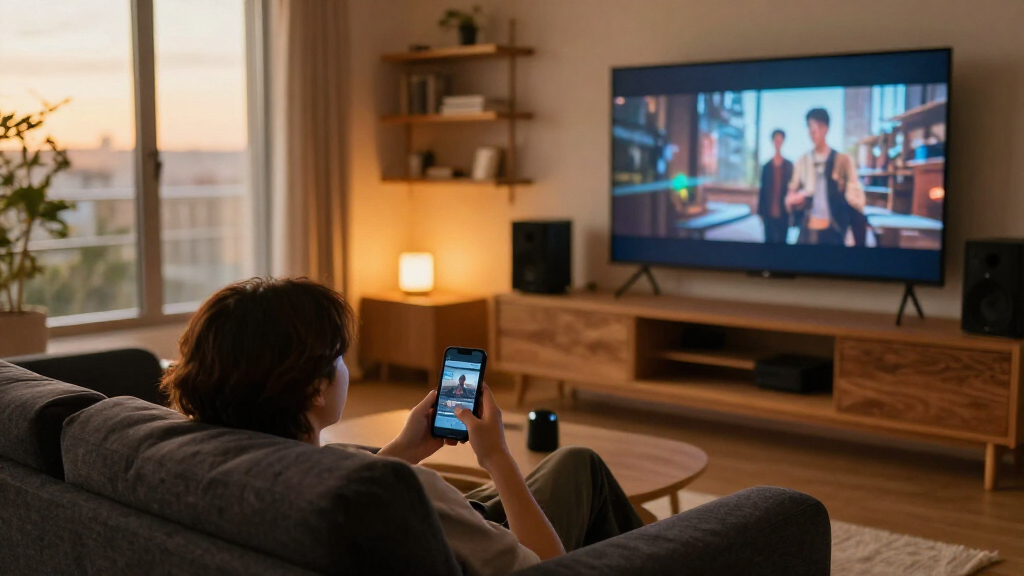
Your movie night can stall before the opening scene: one remote changes the TV input, another wakes the soundbar, and someone has to cross the room to switch off the lamp. Smart home devices for media rooms can bring those small tasks together, but a pile of connected gadgets can create just as much fuss as it removes.

Get business pricing on your home office setup
- Business-only prices and quantity discounts
- Tax-exempt purchasing
- Multiple users, one account, clear invoices
The useful setup starts with the room and the way you watch. You’ll learn which devices to choose first, how to check whether they can work together, and what to plan for lighting, sound, network reliability, privacy, and outages. A few careful choices can make the room feel effortless: lights soften, the screen wakes, and the sound reaches your seat without a hunt for the right button.
Choose the TV or projector, audio system, and streaming source before selecting smart controls.
Check that your platform supports the specific actions you want, such as changing inputs or starting a lighting scene.
Use Ethernet for fixed equipment where practical, and check Wi-Fi coverage where wireless devices will sit.
Plan dimmable, glare-conscious lighting with a convenient manual control; smart bulbs need continuous power.
Review privacy and offline behavior, and keep basic room controls usable without a phone or voice assistant.
Choose the picture and sound before you buy smart controls
Smart home devices for media rooms work best when they support the picture and sound you actually want; connected controls cannot turn a small TV into a theater or fix muddy audio. Decide whether the room needs a TV or projector, a soundbar or separate speakers, and a streaming source before choosing automation. These choices determine which inputs, ports, control methods, and placements the rest of the setup must accommodate. If you buy controls first, you may find they cannot switch the source you use or that a planned speaker location has no practical connection.
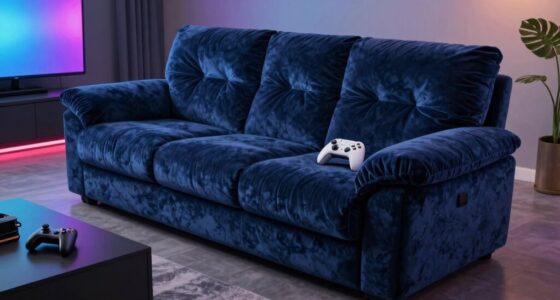
For example, a family using a bright living room most evenings may prefer a TV and soundbar: the screen is easy to see with some daylight, and the audio setup needs little space. A dedicated basement room with curtains and deeper seating may suit a projector and surround speakers, but that choice brings tradeoffs: the room may need better light control, more careful seating and speaker placement, and a plan for cabling. In either case, think about how you’ll switch inputs and adjust volume. A voice routine may handle the basics, while a physical remote remains quicker for precise changes or when the routine misunderstands a command.
Smart describes connected control and automation; it does not promise better picture or sound. Calibration features can help balance audio, but they work within the limits of the speakers and room. For instance, software may reduce some unevenness at the listening position, but it cannot make a speaker hidden in a cabinet behave like one placed correctly. Speaker placement and room reflections still matter. A rug, curtains, or moving a speaker away from a corner may improve what you hear more than adding another app-controlled accessory, because these changes address the sound reaching your ears rather than the number of controls you have.
Pick the screen and audio system for your room first. Then choose smart controls that make those choices easier to use.
Popular right now

De'Longhi Classic Signature Espresso Machine with Adjustable Milk Frother

KitchenAid Classic Series 4.5-Quart Tilt-Head Stand Mixer, Onyx Black

Bose QuietComfort Ultra Earbuds (2nd Gen), Wireless Noise-Cancelling Earbuds with Immersive Audio and Wireless Charging Case, Black
As an affiliate, we earn on qualifying purchases.
Check these five details before expecting one-tap control
One remote or app can coordinate your TV, speakers, lights, and other equipment when each device supports the actions you want. Compatibility is more specific than seeing several products in one app: one system may dim the lights but fail to switch your receiver’s input. That gap matters because a routine is only convenient when it can complete the whole sequence; otherwise, you still need to find another remote or app at the moment you hoped to simplify. Check the product details and platform listings before purchase, especially for routines and control of older equipment.
- List your usual actions. For instance: start the TV, select a streaming box, set the volume, and dim the lights. A concrete list helps distinguish must-have controls from features that sound appealing but will rarely be used.
- Confirm the exact devices and features. Check that your platform supports input changes and volume control for your model, as well as the lighting scene. A TV may be visible to a platform but expose only power and volume, so verify each action that matters.
- Find out whether you need a hub or bridge. Some devices connect directly; others rely on extra hardware. That adds cost and another device to place and maintain, but a hub may also provide the connection or local control a product needs.
- Check the connection and setup requirements. Confirm Wi-Fi needs, available ports, accounts, and required apps. These can affect where equipment goes and how many setup steps household members must manage.
- Keep a straightforward backup control. A normal remote or wall switch can help if a phone or voice command isn’t available. This is especially useful when an internet outage or account issue interrupts automation.
Standards such as Matter can help compatible products work across major smart home platforms, including Apple Home, Google Home, and Amazon Alexa. That can reduce the risk of being locked into one platform when choosing supported products, but it does not make every product expose every feature or guarantee every routine will work. Imagine a new bulb and speaker both appear in your platform: that alone doesn’t prove a “movie time” routine can control both in the way you expect. Verify the routine actions before you build your shopping list, and weigh the convenience of a single platform against the extra setup of a hub, bridge, or separate control method when needed.
Build a network that won’t interrupt the movie
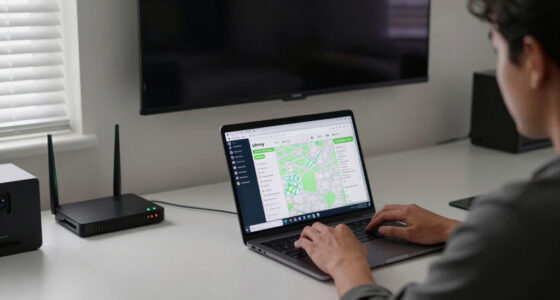
A dependable home network keeps streaming and connected controls responsive. A media room may include a display, streaming box, wireless speakers, lights, and assistants, all relying on Wi-Fi or a wired connection. Each device adds another point where weak coverage or network congestion can affect the experience. If a stream buffers at the same moment your lights stop responding, the problem may be the network rather than the automation routine; replacing a device or rebuilding a routine won’t solve a signal problem.
Start by checking Wi-Fi coverage at the seats and near the devices. A router in a distant hallway might serve phones well but leave a projector or streaming player struggling behind a thick wall. For fixed equipment such as a TV, receiver, or streaming box, Ethernet can offer a steadier link where a cable run is practical. Wiring fixed gear can also free some wireless capacity for devices that cannot be wired. The tradeoff is installation effort: a cable run can be awkward or costly in a finished room, so weigh that against how often buffering disrupts viewing. Wireless speakers still need a strong signal, so test them in their intended locations rather than assuming the room’s center has coverage.
Consider a real example: you mount a TV above the fireplace but put the router two floors away. The TV may work during setup, then stutter when several people stream or make video calls. A successful setup test under light use does not prove the connection will hold up during the evening. Moving the access point, using wired Ethernet for fixed gear, or improving coverage can address the cause more directly than replacing the streaming device. If possible, check performance at the busiest time and in the places where the room’s connected devices will actually sit.
Also plan for power outlets, cable paths, and ventilation. Receivers and game consoles can run warm; cramped shelves can trap heat, which may shorten equipment life or cause performance problems. Keep equipment reachable for updates and troubleshooting, and check whether useful local controls continue working if internet access drops. This planning reduces the chance that a tidy installation becomes difficult to service or leaves you unable to use basic functions during an outage.
Use lighting scenes to reduce glare and make the room flexible
Good media room lighting reduces screen glare and lets one room feel comfortable for different activities. Dimmable lights, smart bulbs, indirect LED strips, and motorized shades can work together in scenes, such as “movie,” “gaming,” or “clean up.” A scene gives you a repeatable starting point; it saves repeated adjustments, but it cannot account for every change in daylight, screen brightness, or who is using the room. You can still adjust it for company, a bright game screen, or a different time of day.
Say your screen reflects a bare ceiling light after sunset. A dim, warm lamp behind the seating or a soft strip behind the TV may give the room a gentle glow without shining into your eyes. That indirect light reduces the contrast between a bright screen and a dark room, which can make viewing more comfortable. During the day, however, even clever scene settings may not overcome direct sunlight hitting the screen. Shade placement and screen position matter too; automation cannot make glare disappear if the afternoon sun falls straight across the picture. Shades can help, but they add cost and require suitable power and mounting.
Smart bulbs need continuous power to stay reachable. If someone flips a wall switch that cuts their power, the app may show them as offline until someone switches it back on. This creates a household tradeoff: app control is useful only if people remember not to use the switch that disables it. Use a compatible wall control or keep the physical switch on and teach household members how the setup works. For guests or kids, simple wall controls can be easier than asking them to find a phone app.
- Choose indirect light when a visible bulb reflects on the screen.
- Create separate scenes for watching, gaming, and everyday use.
- Keep a practical way to turn lights on manually.
Entertainment integrations can sync lights with content, but the effect and device support vary. Fast color changes can add energy for gaming or parties, while they may distract from a film or become tiresome over a long session. Try a modest setup first; a calm, glare-free room often feels better than a ceiling full of flashing color.
Treat speaker placement as part of your smart setup
Speaker placement and room surfaces shape what you hear, even when the speakers offer wireless playback or automatic calibration. Hard walls and bare floors can make dialogue sound sharp or echoey, while soft furnishings absorb some reflections. Smart calibration can adjust parts of the sound, but it cannot fully compensate for a speaker hidden in a cabinet or aimed away from the seats. This means placement and room treatment are part of the audio decision, not finishing touches to leave until after buying connected controls.
For a small media room, a soundbar under the TV may keep setup simple and improve speech clarity over built-in speakers. A larger dedicated room may benefit from separate surround speakers, though placement and cable routing need more thought. For example, putting the rear speakers directly behind a sofa can leave nearby listeners with loud effects in one ear. A small placement change may make the sound feel more balanced across the seats. The tradeoff is that a more flexible speaker layout can require more space, wiring, and setup time; a simpler soundbar may be easier to live with even if it offers less separation between sounds.
Wi-Fi-based multiroom audio and wireless surround components can reduce visible cabling, which is handy in a finished room where running wires through walls would be disruptive. That convenience shifts some dependence to the network, though: weak coverage or a product’s limited connection options can constrain where speakers go or interrupt playback. Compare what matters in your room: ease of installation, stable connections, speaker placement, and the controls you need. If you can, try the intended locations before committing to permanent mounts or a system that is difficult to return.
If electrical work or permanent in-wall wiring is required, use a licensed professional and follow applicable building and electrical rules. Don’t open walls or work on live circuits to save a little time. Plan cable routes and equipment ventilation before installation so the finished room stays easy to maintain. Making access and airflow part of the plan can prevent a hidden cable or overheated receiver from turning a simple repair into a major reinstallation.
Keep control simple when voice, cloud, or internet fails
A reliable media room offers more than one way to control essential equipment. Voice assistants can start common routines, but background dialogue, loud music, or a room full of people can make commands unreliable. An app may be convenient until your phone is charging elsewhere. Keep the TV remote, receiver controls, or a useful wall switch within easy reach. This backup does more than prevent inconvenience: it means a failed command or service outage does not leave you unable to turn on the screen or adjust the sound.
Before buying an assistant, camera, or microphone-equipped device, review its mute controls, privacy settings, account requirements, and data practices. A media room may not need a camera at all. If you do use a voice assistant, a physical mute switch can help when you want a quiet room without changing a complex setting, though muting may also prevent hands-free routines until you switch it back on. Consider who uses the room and whether the convenience of voice control is worth having another microphone there.
Offline behavior varies by product. Streaming and remote access often need internet; cloud voice services may stop during an outage too. Some local controls and automations can keep working, depending on the devices and configuration. For example, you might still dim a locally connected light from a wall control even while a cloud routine that starts a streaming service fails. This distinction helps set practical expectations: a local switch may keep lighting available, but it cannot make an online streaming service work without a connection. Check each product’s documentation for what works without internet or a vendor account.
Software support and standby power also affect long-term ownership. Check the expected update support where manufacturers publish it, and think about what happens if an app or service changes. A device that depends on an account or cloud service may lose some functions if that service is discontinued, while a manual remote or local switch can remain useful. A smaller setup with clear manual controls can be easier to live with than a larger collection that depends on several accounts and cloud services. That simplicity can be a meaningful tradeoff if advanced automation would save only a few occasional taps.
Frequently Asked Questions
What devices do I need for a smart media room?
Most rooms start with a display, audio system, streaming source, suitable lighting, and a control method. Your room might need only a TV and soundbar, or a projector, surround speakers, shades, and more. Choose based on how you watch and listen rather than buying a fixed bundle.
Can I control my TV, speakers, and lights with one app?
Often, but it depends on the devices and platform. Check whether the app supports the exact actions you want, such as switching inputs, adjusting volume, and starting a lighting scene. Devices appearing in the same app does not guarantee every control works.
Do I need a smart home hub?
Not always. Some products connect directly over Wi-Fi or use a platform’s built-in controller; other devices need a hub or bridge. Check each product’s connection requirements before you buy.
Will the system still work if my internet goes down?
Some local controls may continue to work, but streaming, remote access, cloud voice services, and some automations may stop. The result depends on your products and configuration. Check the offline behavior of each device and keep essential controls accessible without an app.
How should I set up lighting for movies?
Reduce glare and avoid pointing lights directly at the screen. Dimmable, indirect lighting can give you a softer scene, while shades help manage daylight. Keep a manual control available, especially if smart bulbs rely on a wall switch staying on.
Are wireless speakers a good choice for a media room?
Wireless speakers can reduce visible cabling and suit rooms where running wires is difficult. They still rely on a solid network, and a wired system may offer more predictable connections or flexibility in a dedicated theater. Compare installation needs and test signal coverage at the planned speaker locations.
Conclusion
Build your media room around the experience first: a clear screen, sound that suits the space, and lighting that doesn’t fight the picture. Then add only the controls that reliably bring those pieces together. Before buying, check the exact device actions, network needs, privacy settings, and manual backup controls.
A well-planned setup should fade into the background. When the lights soften and the first scene begins, you should be watching the movie, not searching for another remote.